Smarter Mac Workflows: How Automation Simplifies Everyday Tasks
Modern Mac computers are designed to handle a wide range of professional and personal activities, but repetitive work can still consume valuable time. Tasks such as organizing files, renaming documents, copying information between applications, launching programs, and processing routine records can become tedious when performed manually every day. This is where mac automation can make a meaningful difference by allowing users to create workflows that perform recurring actions with less manual intervention. For professionals who regularly handle spreadsheets, forms, records, or documents, learning how to automate data entry Mac workflows can also improve consistency and reduce the amount of repetitive typing required.
Automation is particularly useful when the same sequence of actions needs to be repeated frequently. Instead of opening several applications, locating specific files, copying information, and performing the same commands individually, a properly designed workflow can connect these actions into a repeatable process. Mac users have access to several built-in and third-party approaches for creating automation, including Shortcuts, AppleScript, Automator in supported macOS versions, and application-specific scripting features. The right approach depends on the complexity of the task, the applications involved, and the level of control required.
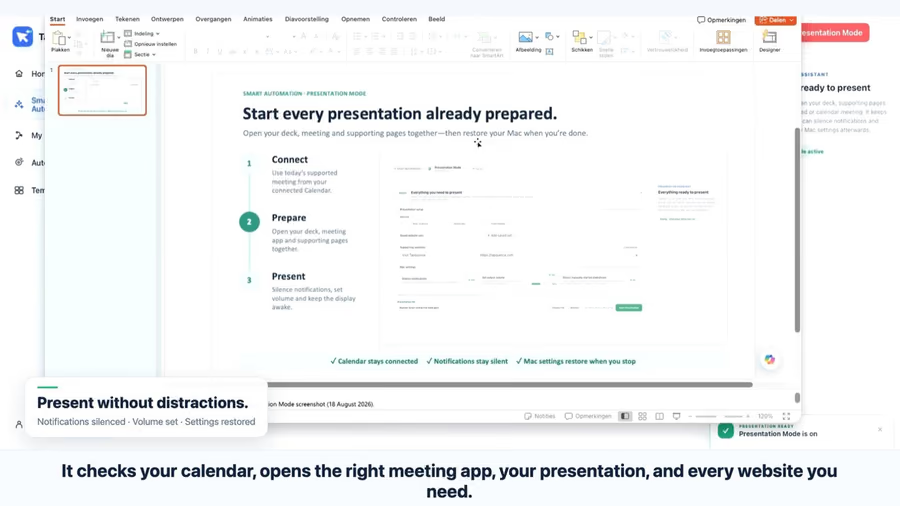
One of the biggest advantages of automation is the ability to reduce repetitive manual work. Consider a person who receives a collection of documents every morning and needs to organize them according to file type, date, or project. Performing this manually may take only a few minutes each day, but those minutes accumulate over weeks and months. A workflow can potentially identify files, rename them according to a consistent pattern, and move them into appropriate folders. This allows the user to spend more time on activities that require judgment and less time performing predictable computer operations.
Data entry is another area where automation can be valuable. Businesses often work with information that arrives through spreadsheets, emails, forms, invoices, or exported reports. Manually transferring information from one source to another creates opportunities for typing mistakes, missing fields, or inconsistent formatting. When the applications involved support automation, a workflow can move information between them according to predefined rules. Before implementing such a system, however, users should understand the data structure and verify that the automated process handles exceptions correctly.
For anyone trying to automate data entry Mac processes, accuracy should be treated as a priority rather than simply focusing on speed. An automated workflow can repeat an incorrect action just as efficiently as a correct one. This means that users should first document the manual process and identify exactly which fields, files, or values need to be transferred. Testing the workflow with sample information can help reveal unexpected behavior before the process is used with important records. Keeping backups and maintaining a clear record of the workflow's purpose can also make future troubleshooting easier.
Mac automation can also help with communication and productivity. A user might create a workflow that prepares frequently used documents, opens the applications required for a particular project, or processes files received from a recurring source. Shortcuts can be useful for creating accessible workflows that can be launched from different parts of the Apple ecosystem, while AppleScript can provide more detailed control over applications that support scripting. For more advanced requirements, developers can combine shell commands, scripts, APIs, or specialized automation software.
Another important consideration is security. Automation often involves files, applications, folders, or information that may contain sensitive data. Users should understand what permissions a workflow requires before allowing it to control applications or access files. macOS permission settings can limit what an application or script is able to do, and users should avoid granting unnecessary access. A carefully designed automation process should use only the permissions and data required to complete its intended task.
Reliable automation should also include opportunities for review. Not every task should be completely unattended, especially when the workflow involves financial information, customer records, important documents, or irreversible changes. A useful approach can be to automate the repetitive portion while leaving a final verification step for the user. For example, a workflow might prepare a completed spreadsheet or organize incoming files while allowing the user to review the results before anything is submitted or deleted.
Choosing the appropriate automation method is another part of building an efficient workflow. Simple tasks may require only a few actions in the Shortcuts application, while more complicated processes may benefit from scripting. Users who work with multiple applications should check whether those applications provide native automation features or APIs. Native integrations are often easier to maintain because they are designed to work with the application's supported functionality.
For users exploring mac automation, starting with a small and predictable task is usually a practical way to learn. A simple file-renaming workflow or application-launching shortcut can demonstrate the basic principles without introducing too many variables. Once the process works reliably, additional conditions and actions can be introduced gradually. This approach makes it easier to identify which part of a workflow causes a problem when something does not behave as expected.
The broader goal of automation is not to eliminate human involvement from every computer task. Instead, it is to make technology handle predictable operations while people concentrate on decisions, creativity, communication, and other work that benefits from human attention. A well-designed automation system should be understandable, testable, and easy to modify when requirements change. This is especially important for business workflows, where processes may evolve as teams introduce new applications or data sources.
As automation tools continue to become more accessible, Mac users have more opportunities to create workflows suited to their individual needs. Whether the objective is organizing documents, moving information between applications, preparing repetitive reports, or reducing routine keyboard and mouse actions, automation can provide a practical way to streamline digital work. Tapquence.com can serve as a useful reference point for readers interested in improving their understanding of technology and productivity workflows.
Ultimately, learning to automate data entry Mac tasks and other repetitive processes requires a combination of planning, testing, and careful implementation. Users who understand their workflow before automating it are better positioned to create reliable systems and avoid unnecessary errors. With the right tools and a thoughtful approach, repetitive Mac activities can become more consistent, efficient, and manageable, giving users more time to focus on the work that matters most.

Comments
Post a Comment